📱 iPhone / iPad 🤖 Android 💻 Desktop
iPhone / iPad
Safari is required on iPhone. Chrome on iPhone does not support PWA install — you need Safari for the Add to Home Screen option to appear.
1

Open the RentalGuards link in Safari.

You'll land on the install page. The Share button is at the bottom of Safari — tap it.
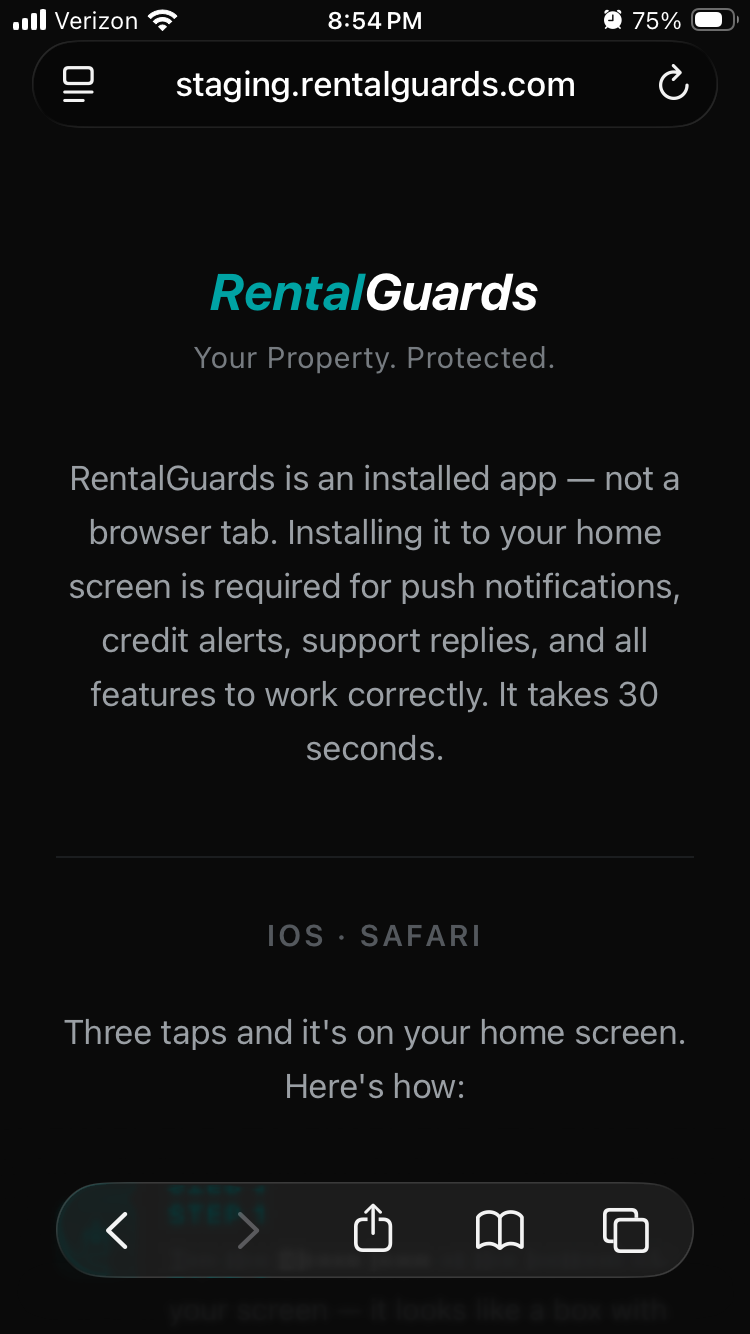
RentalGuards iOS install page in Safari
2

Find Add to Home Screen in the share menu.

The share sheet will open. Scroll down until you see Add to Home Screen. If you don't see it, tap More — it's in there.
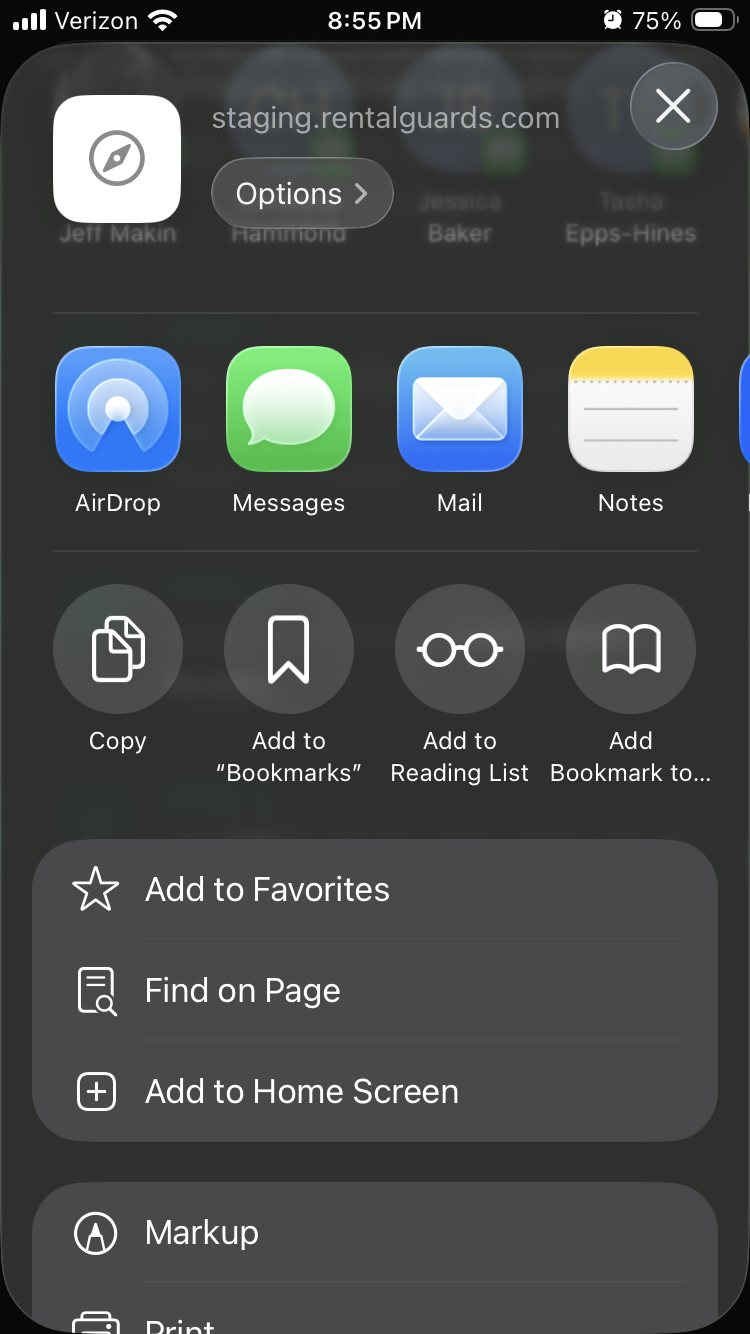
Safari share sheet with Add to Home Screen option
3

Tap Add in the top right corner.

The app name will appear — just tap Add. That's it.
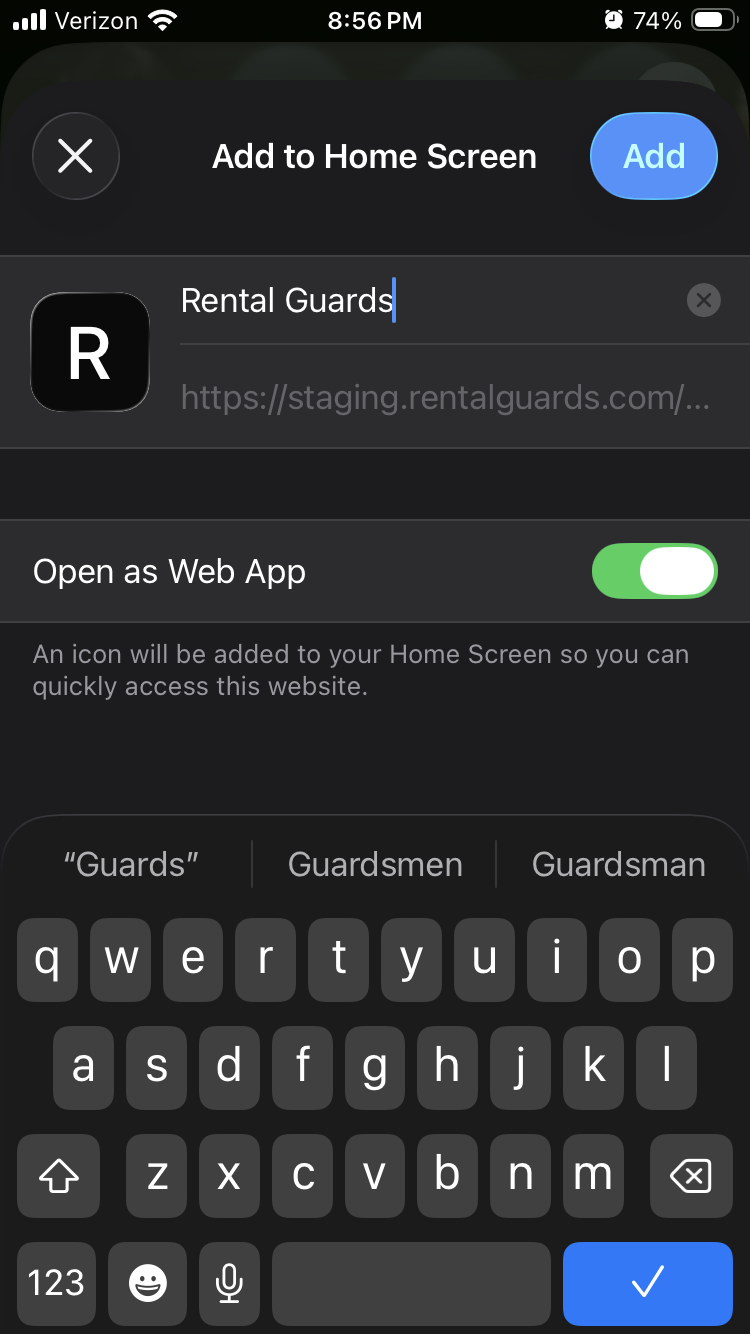
Add to Home Screen confirmation dialog
4

You're done.

Open RentalGuards from your home screen and create your account.

Android
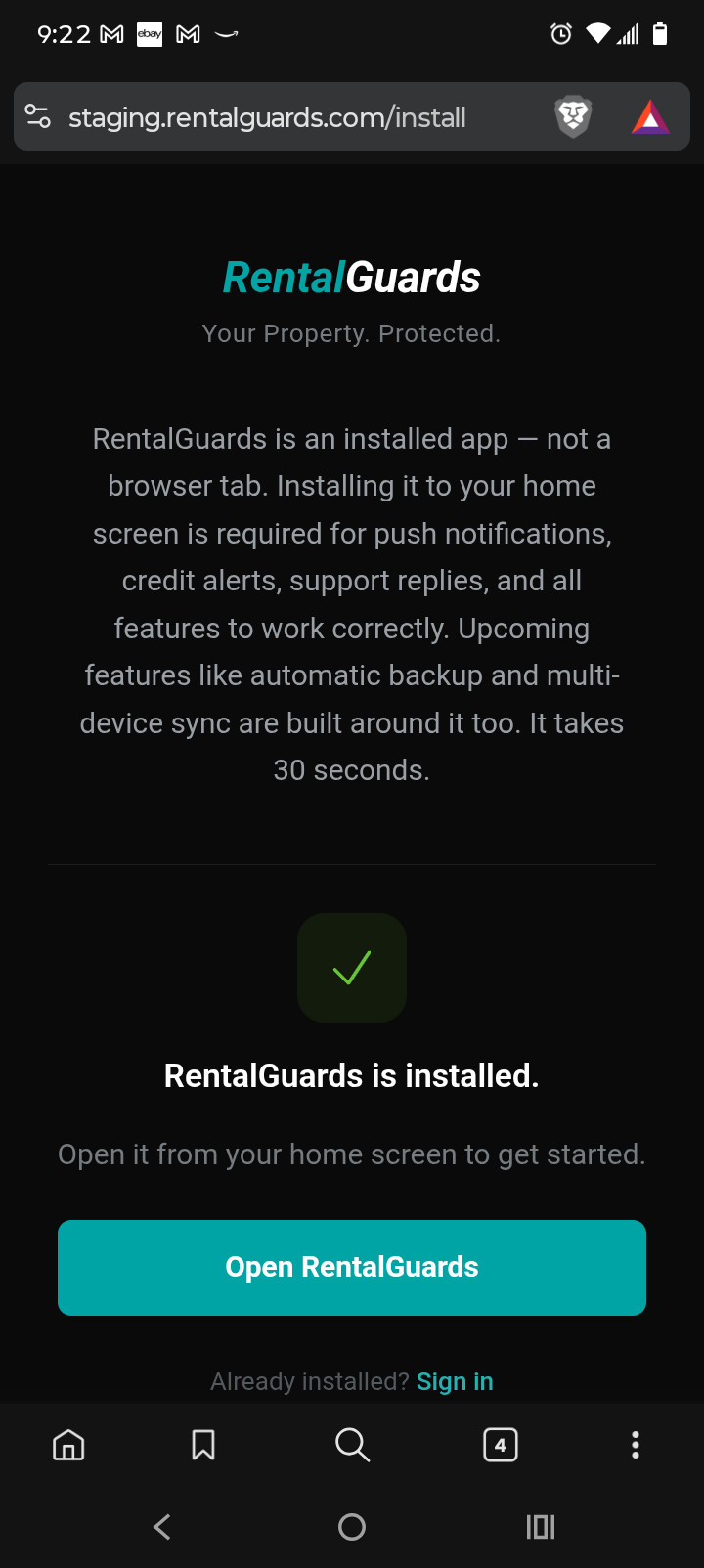
Chrome works best on Android. Open rentalguards.com in Chrome for the quickest install — the install button will appear right on the page.
1

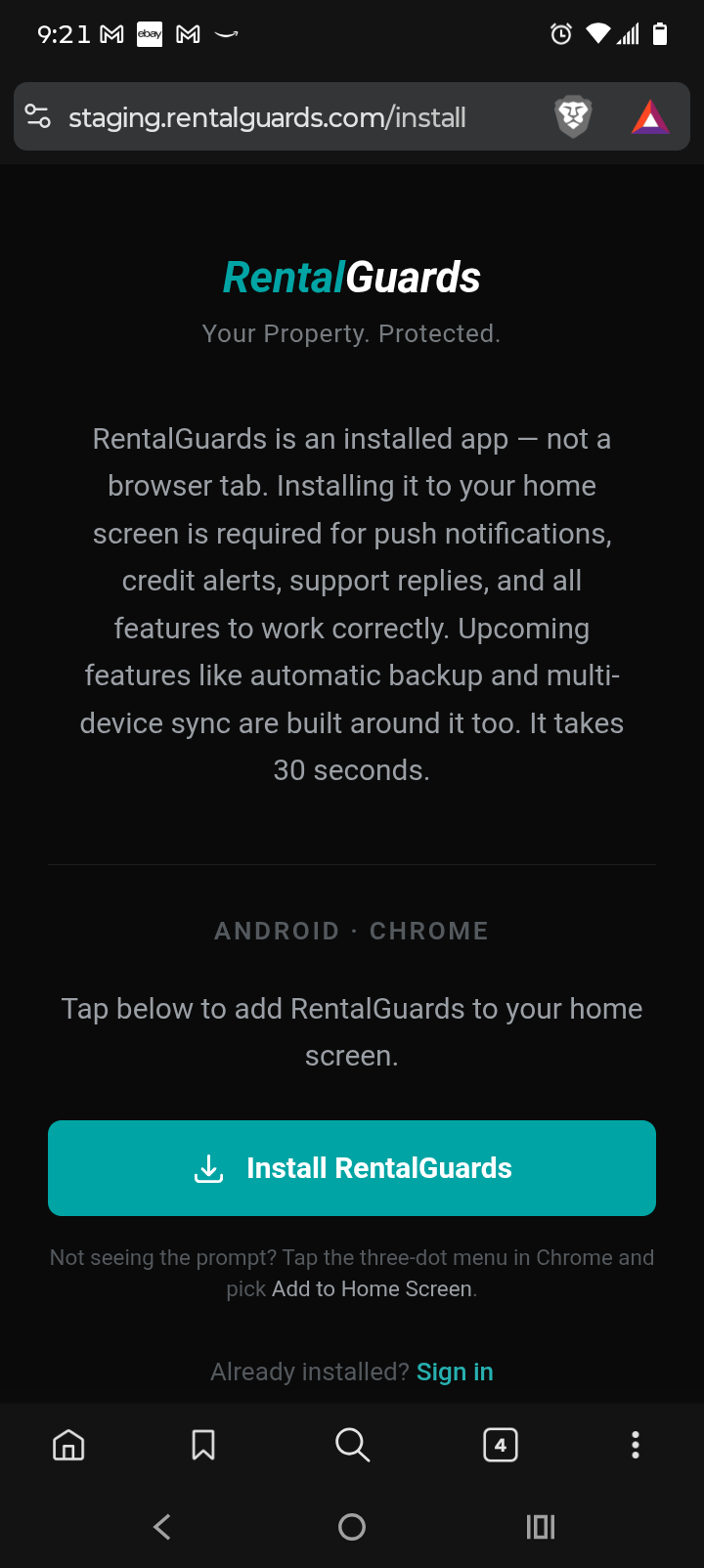
Tap the teal Install RentalGuards button.

Open rentalguards.com in Chrome. The install button appears right on the page — no digging through menus.

Install RentalGuards button on the page
2

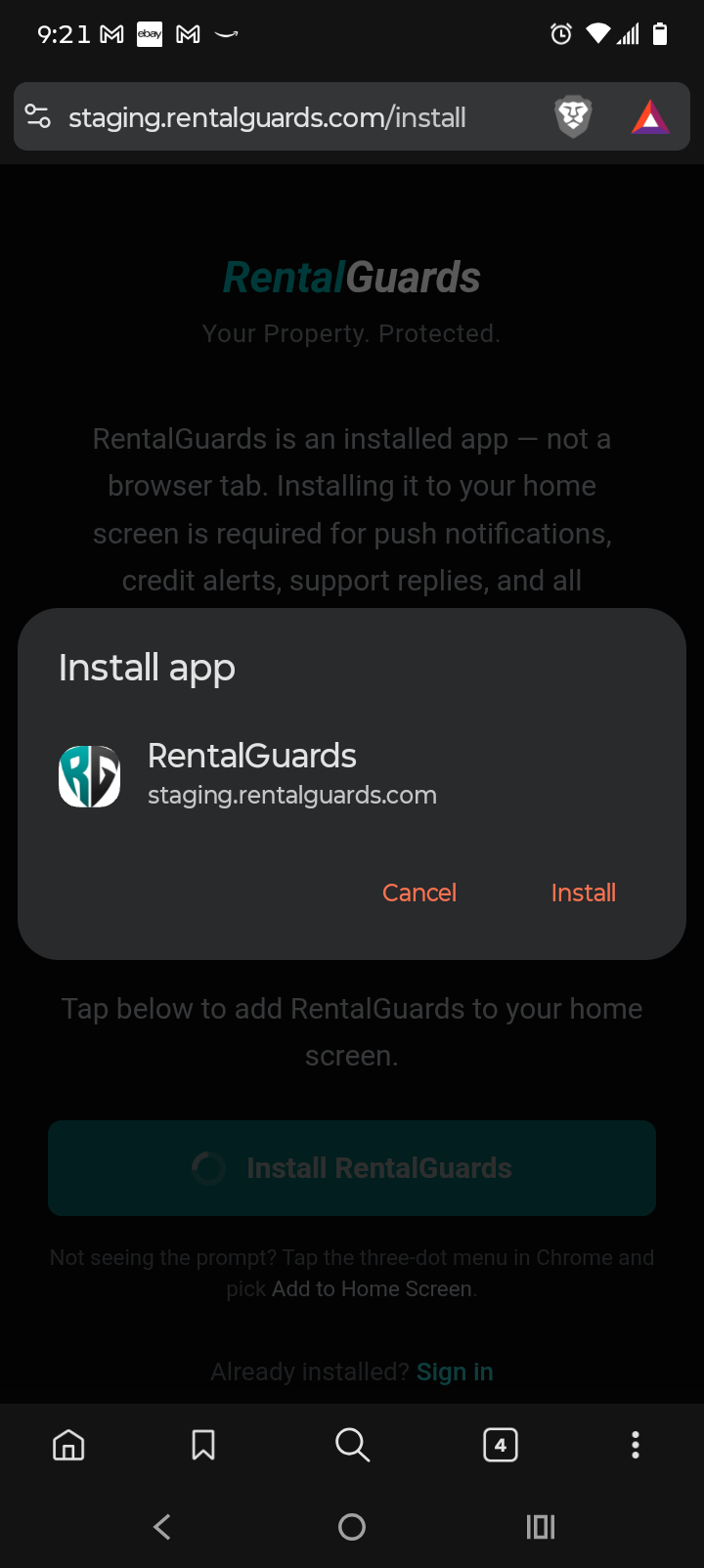
Chrome will ask you to confirm. Tap Install.

A small popup appears from Chrome with the app name. Just tap Install.

Chrome Install app popup
3

You're done.

RentalGuards is installed. Open it from your home screen and create your account.
RentalGuards installed confirmation
Using Firefox on Android?
RentalGuards needs to be installed through a Chromium-based browser. Open this page in Brave or Chrome to install — both are free and you can keep using Firefox for everything else. Brave is a great option if you prefer a privacy-focused browser.

Download Brave →Download Chrome →
Using Samsung Browser?
1

Tap the menu icon at the bottom of the screen.

2

Tap Add page to, then tap Home screen.

3

Tap Add to confirm.

RentalGuards is now on your home screen. Open it and create your account.


Desktop
Chrome and Edge both support desktop install. Firefox does not support PWA install on desktop.
Chrome
1

Look for the install icon in the address bar.

It looks like a screen with a download arrow. Click it, then click Install.

2

Don't see the icon? Use the menu.

Click the three-dot menu in the top right and select Cast, save, and share, then Install page as app.

Edge
1

Look for the install icon in the address bar.

It looks like a screen with a plus sign. Click it, then click Install.

2

Don't see the icon? Use the menu.

Click the three-dot menu in the top right and select Apps, then Install this site as an app.

Already installed?

Open RentalGuards →